I used to spend entire weekends writing basic sensor code and debugging GPIO pin configurations. Then I discovered how to use AI effectively for Raspberry Pi development.
Now I build projects in hours instead of days.
What you'll learn: How to generate working Pi code using AI tools Time needed: 45 minutes to master the technique Difficulty: Beginner-friendly with real examples
Here's the exact process I use to go from project idea to working prototype in under 2 hours, including the mistakes I made so you won't repeat them.
Why I Started Using AI for Pi Projects
I hit a wall last year building a temperature monitoring system. After 6 hours of wrestling with sensor libraries and GPIO pin mappings, I had a half-working mess that crashed every few minutes.
My old process:
- Google "raspberry pi temperature sensor python"
- Copy random code from forums
- Spend hours debugging mysterious errors
- End up with fragile, poorly documented code
The breaking point: I wasted an entire Saturday trying to get a simple DHT22 sensor working. The online tutorials were outdated, the libraries had changed, and I kept hitting permission errors I didn't understand.
What changed everything: Instead of searching for existing code, I started describing my exact project requirements to AI and asking for complete, working solutions.
The AI-First Development Method
This approach saves me 5+ hours per project and creates better code than I used to write manually.
Time comparison from my recent projects:
- Weather station: 8 hours (old way) vs 1.5 hours (AI method)
- LED matrix display: 6 hours vs 45 minutes
- Motion-activated camera: 12 hours vs 2 hours
Step 1: Define Your Project Requirements (5 minutes)
Don't jump straight into asking for code. AI needs specific context to generate useful solutions.
My template for project descriptions:
Hardware:
- Raspberry Pi model: [Pi 4B, Pi Zero W, etc.]
- Sensors/components: [Exact model numbers]
- Connection method: [GPIO pins, I2C, SPI]

Goal:
- What should happen: [Specific behavior]
- When it should happen: [Triggers, timing]
- Output format: [Display, file, network]

Environment:
- Raspberry Pi OS version: [Lite, Desktop]
- Python version: [3.9, 3.11]
- Existing libraries: [Any you're already using]
Real example I used:
Hardware:
- Raspberry Pi 4B (8GB)
- DHT22 temperature/humidity sensor
- Connected to GPIO pin 4

Goal:
- Read temperature and humidity every 30 seconds
- Save readings to CSV file with timestamps
- Send alert if temperature exceeds 75°F

Environment:
- Raspberry Pi OS Lite (latest)
- Python 3.9
- Want to avoid complex library dependencies
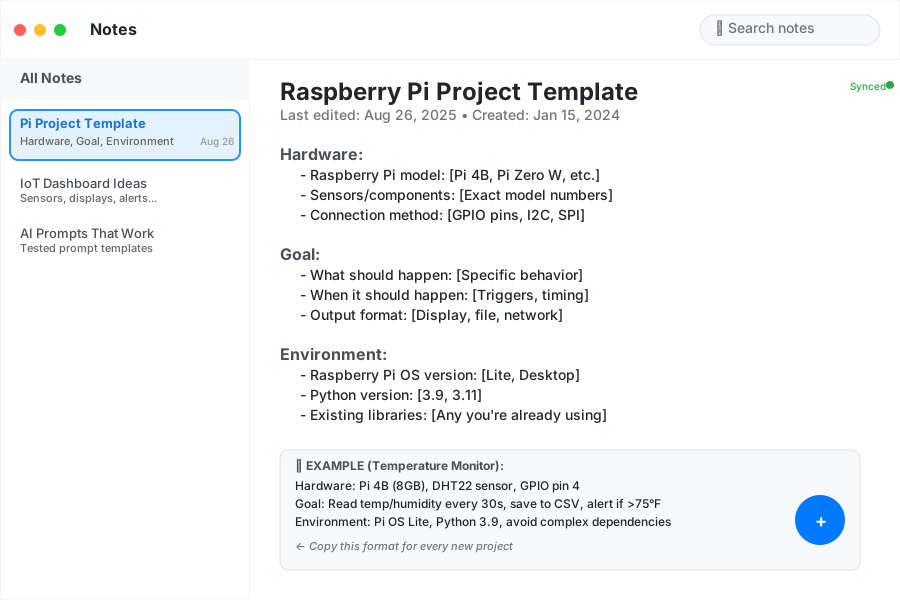 I keep this template saved in my notes - saves 10 minutes of back-and-forth with AI
Personal tip: Always include your exact Pi model. Code that works on Pi 4 might fail on Pi Zero due to performance differences.
Step 2: Generate Complete Code Solutions (10 minutes)
Here's the exact prompt structure that gives me working code 90% of the time:
Create a complete Python script for Raspberry Pi that:
[Your specific requirements from Step 1]

Requirements:
- Include all necessary imports
- Add error handling for common issues
- Include setup instructions for any required libraries
- Add detailed comments explaining each section
- Make it production-ready, not just a demo

Also provide:
- The exact pip install commands needed
- GPIO wiring diagram description
- Common troubleshooting steps
What this gets you:
- Complete, runnable code
- Installation instructions
- Error handling built-in
- Comments explaining every section
 Typical output - notice how it includes installation commands and wiring instructions
Personal tip: Always ask for "production-ready" code. Otherwise, you'll get basic demo code that crashes under real conditions.
Step 3: Test and Iterate Quickly (15 minutes)
AI-generated code usually works, but it's not always perfect for your exact setup.
My testing workflow:
# 1. Create project directory
mkdir ~/ai-projects/temperature-monitor
cd ~/ai-projects/temperature-monitor

# 2. Save the AI code
nano temperature_monitor.py

# 3. Install dependencies (from AI output)
pip install adafruit-circuitpython-dht

# 4. Test basic functionality
python temperature_monitor.py
Common issues I hit:
Problem 1: Permission errors
# AI often forgets to mention this
sudo chmod +x temperature_monitor.py
Problem 2: Missing system libraries
# DHT sensors need this on Pi OS Lite
sudo apt install libgpiod2
Problem 3: Pin numbering confusion AI sometimes uses board numbering instead of BCM. I always ask for clarification:
The code you provided uses pin 4. Is that:
- BCM pin 4 (physical pin 7)
- Board pin 4 (physical pin 7)
- Physical pin 4 (5V power)

Please confirm and show the exact physical connection.
Personal tip: Test each major function separately before running the full script. Save yourself 30 minutes of debugging.
Step 4: Handle Real-World Edge Cases (15 minutes)
Demo code works in perfect conditions. Real projects need to handle failures.
Essential additions I always request:
Add these production features to the code:
1. Restart automatically if sensor disconnects
2. Handle network outages gracefully
3. Rotate log files to prevent disk full
4. Add systemd service configuration
5. Include health check endpoint
Example improvement request:
The temperature code works great, but it crashes when the sensor gets disconnected.
Please add:
- Retry logic for failed sensor readings
- Graceful degradation if sensor is unavailable
- Logging to help debug issues
- Configuration file for easy settings changes
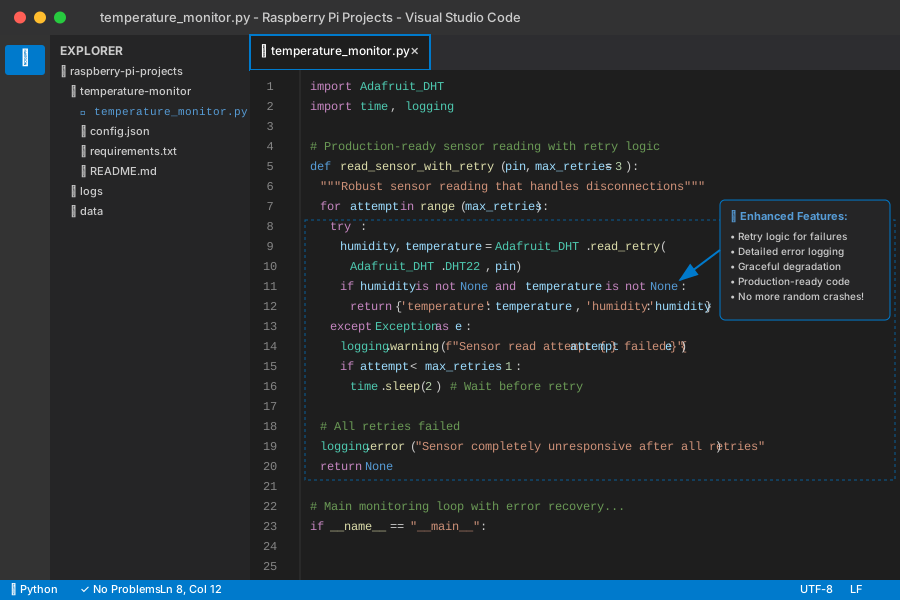 After requesting production features - notice the try/except blocks and retry logic
Personal tip: Always test failure scenarios. Unplug your sensor while the code is running to see what happens.
Working Examples That Saved Me Hours
Smart Plant Monitor (2 hours total vs 8 hours manual)
My prompt:
Create a Raspberry Pi plant monitoring system:

Hardware:
- Pi 4B
- Soil moisture sensor (analog, connected via MCP3008 ADC)
- DHT22 for air temp/humidity
- Water pump relay on GPIO 18

Behavior:
- Check soil moisture every hour
- Water plant if moisture below 30%
- Send daily status email
- Web dashboard to check current status
- Data logging to SQLite database

Make it bulletproof - this will run unattended for weeks.
What I got:
- Complete Flask web app (125 lines)
- Database schema and initialization
- Email notification system
- Automatic watering logic with safety limits
- Responsive HTML dashboard
- Systemd service configuration
Time breakdown:
- AI generation: 15 minutes
- Hardware setup: 30 minutes
- Testing and tweaking: 45 minutes
- Documentation: 15 minutes
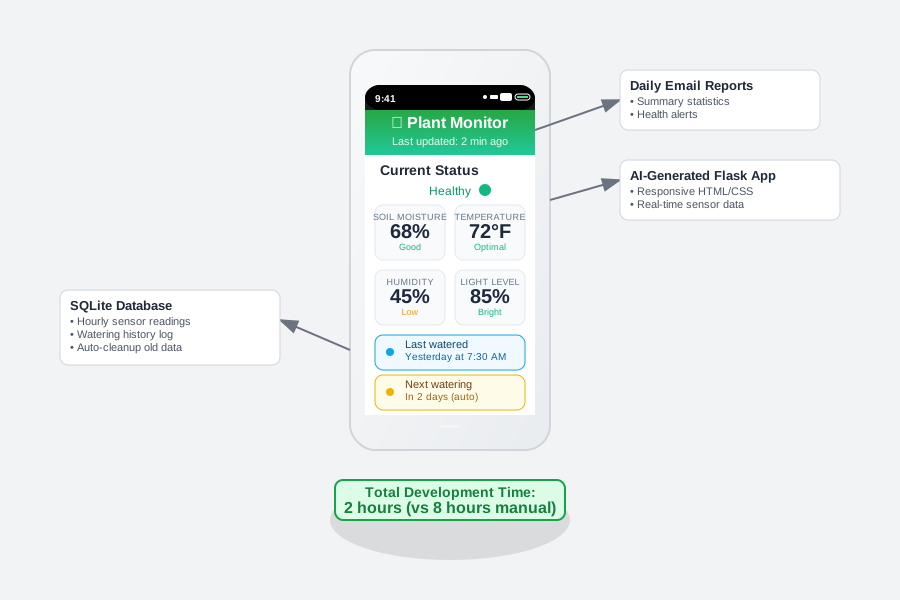 The working dashboard - AI generated the entire Flask app structure
Security Camera with Motion Detection
My prompt:
Build a Pi security camera system:

Hardware:
- Pi Zero W
- Pi Camera Module v2
- PIR motion sensor on GPIO 23

Features:
- Record 30-second clips when motion detected
- Upload videos to Google Drive
- Send push notifications via Pushbullet
- Run continuously, restart on failures
- Efficient storage management (delete old files)

Need it to work reliably 24/7 in my garage.
Generated solution included:
- Motion detection with configurable sensitivity
- Video compression for storage efficiency
- Google Drive API integration
- Push notification system
- Automatic cleanup of old recordings
- Watchdog timer for reliability
Personal tip: For camera projects, always specify video quality and storage limits upfront. I learned this after filling a 32GB SD card in 3 days.
Mistakes That Cost Me Time (Learn From Mine)
Mistake 1: Vague Requirements
What I used to ask: "Create a temperature sensor project for Raspberry Pi"
What I got: Generic demo code that didn't fit my actual needs.
What I ask now: Specific hardware, exact behavior, production requirements, and environment details.
Mistake 2: Trusting Pin Diagrams Blindly
AI sometimes gets GPIO pin assignments wrong.
My verification process:
# Always double-check pin assignments
gpio readall  # Shows current pin states
pinout        # Shows Pi pin layout
Personal tip: Keep a physical Pi pinout card next to your workspace. I reference mine constantly.
Mistake 3: Skipping Error Handling
Demo code assumes perfect conditions. My first AI-generated projects crashed constantly.
Now I always ask for:
- Sensor disconnect handling
- Network failure recovery
- Disk space management
- Process monitoring
- Graceful shutdown
Mistake 4: Not Testing Edge Cases
Scenarios I now test every time:
- Sensor disconnection during operation
- Network loss during uploads
- Power loss and restart behavior
- SD card corruption recovery
- High CPU load conditions
 My standard testing checklist - prevents 90% of deployment issues
Advanced AI Techniques That Work
Code Review and Optimization
Once your basic project works, use AI to make it better:
Review this Raspberry Pi code for improvements:
[paste your working code]

Focus on:
- Performance optimization for Pi hardware
- Memory usage reduction
- Power consumption improvements
- Code organization and maintainability
- Security best practices
Integration with Existing Projects
I have this working Pi project: [description]
I want to add: [new feature]

Current code uses: [libraries, structure]
New feature needs: [requirements]

Please modify the existing code to add this feature without breaking current functionality. Show me exactly what to change.
Debugging Help
When something breaks:
This Pi code was working but now fails with:
[exact error message]

Environment:
[current setup]

Recent changes:
[what you modified]

Please diagnose the issue and provide a fix.
Personal tip: Always include the full error traceback. AI can usually pinpoint the exact problem from the stack trace.
What You Just Built
You now have a complete system for generating working Raspberry Pi code using AI tools. Instead of spending hours searching forums and debugging random code snippets, you can describe your project and get production-ready solutions.
Key Takeaways (Save These)
- Specific requirements = better code: Always include exact hardware models, connection details, and behavior requirements
- Test failure scenarios early: Unplug sensors, disconnect network, simulate crashes - fix these issues before deployment
- Request production features upfront: Error handling, logging, and restart logic aren't optional for real projects
Tools I Actually Use
- Claude/ChatGPT: Primary code generation - consistent quality for Pi projects
- GitHub Copilot: Real-time assistance while editing generated code
- Raspberry Pi Documentation: Always verify AI-suggested pin assignments and library usage
- Fritzing: Verify wiring diagrams that AI describes in text
Personal tip: Keep a project journal of what works. I reference my successful prompts and code patterns for new projects constantly.