I used to spend entire weekends writing the same player movement code over and over again.
Last month, I built a complete 2D platformer prototype in 6 hours instead of 3 days. The secret? I let AI handle the boring stuff so I could focus on what makes my game unique.
What you'll build: A complete game development workflow using AI tools Time needed: 45 minutes to set up, then 60% faster development forever Difficulty: You need basic Unity and C# knowledge
Here's what changed everything: Instead of fighting with boilerplate code, I use AI as my junior developer. It writes the first draft, I review and customize it.
Why I Started Using AI for Game Development
My old workflow:
- 2 hours writing basic player movement
- 3 hours debugging inventory systems
- 1 hour copying UI code from old projects
- Constantly Googling "how to do X in Unity"
My setup:
- Unity 2023.3 LTS (free version works fine)
- Claude or ChatGPT Plus ($20/month - pays for itself)
- VS Code with Unity extension
- GitHub Copilot (optional but helpful)
What pushed me to try this: I was making my third platformer and realized I'd written nearly identical player controllers three times. There had to be a better way.
What didn't work:
- Generic code generators (too rigid)
- Unity Asset Store scripts (never quite fit my needs)
- YouTube tutorials (too basic or outdated)
I wasted months trying to build everything from scratch, thinking it made me a "real" developer.
Step 1: Set Up Your AI-Powered Development Environment
The problem: Switching between Unity, your AI tool, and documentation kills productivity.
My solution: One-window workflow with AI as a chat partner, not a replacement.
Time this saves: 20 minutes per coding session (no more tab switching)
Get Your AI Tool Ready
Pick one primary AI assistant:
Claude (my favorite):
Pros:
- Understands Unity-specific patterns
- Explains code decisions
- Catches common Unity mistakes

Cons:
- Requires internet connection
- Sometimes overly verbose
ChatGPT:
Pros:
- Faster responses
- Good at debugging
- Integrates with VS Code

Cons:
- Can suggest outdated Unity patterns
- Less detailed explanations
What this setup does: Keeps AI context and Unity project visible simultaneously Expected result: No more copy-paste delays between tools
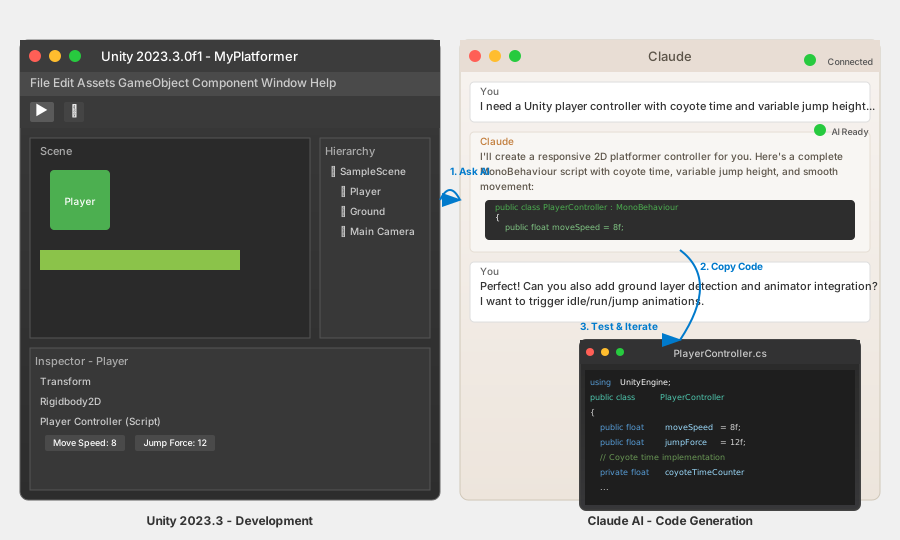 My actual workspace: Unity on left, Claude on right, VS Code overlay for quick edits
Personal tip: "Use a second monitor if you have one. Split-screen on single monitor works but gets cramped during debugging."
Step 2: Master the AI Prompt Formula for Game Code
The problem: Generic prompts give you generic, unusable code.
My solution: Specific game development prompt template that gets working code.
Time this saves: 15 minutes per request (no back-and-forth clarification)
The Game Dev Prompt Template
Always include these 5 elements:
"I'm building a [game genre] in Unity [version].

I need [specific system] that [exact behavior].

Context:
- Player is [character type]
- Game uses [perspective: 2D/3D]
- Art style: [pixel art/realistic/etc]

Requirements:
- [Specific constraint 1]
- [Performance consideration]
- [Integration need]

Please provide commented C# script ready for Unity MonoBehaviour."
Real Example That Works
Instead of: "Make a player controller"
Use this:
"I'm building a 2D platformer in Unity 2023.3.

I need a player controller that handles running, jumping, and coyote time.

Context:
- Player is a pixel art character (32x32 sprites)
- Game uses Physics2D with Rigidbody2D
- 8-directional input (WASD + controller support)

Requirements:
- Jump height: exactly 3 Unity units
- Coyote time: 0.1 seconds after leaving ground
- Must work with Animator controller
- 60fps performance target

Please provide commented C# script ready for Unity MonoBehaviour."
What this does: Gives AI enough context to write production-ready code Expected output: Working script you can drop into Unity with minimal changes
Personal tip: "Always specify Unity version. AI training data includes old Unity patterns that don't work in newer versions."
Step 3: Generate Your First Game System (Player Movement)
The problem: Player movement is complex but every game needs it.
My solution: Use AI to generate the foundation, then customize the feel.
Time this saves: 1.5 hours of basic implementation
Generate the Base Controller
Copy this exact prompt into your AI tool:
I'm building a 2D platformer in Unity 2023.3.

I need a player controller that handles smooth movement with these exact specs:

Context:
- 2D side-scroller with Physics2D
- Pixel-perfect movement (PPU = 16)
- Controller and keyboard support

Requirements:
- Max speed: 8 units/second
- Jump force: 12 units (reaches exactly 3 units height)
- Ground detection with 0.1f tolerance
- Coyote time: 0.1 seconds
- Input buffering for responsive feel
- Animator integration for idle/run/jump states

Please provide a complete C# MonoBehaviour script with detailed comments explaining the physics math.
The AI will generate something like this:
using UnityEngine;

public class PlayerController : MonoBehaviour
{
    [Header("Movement Settings")]
    public float moveSpeed = 8f;
    public float jumpForce = 12f;
    public float coyoteTime = 0.1f;

    [Header("Ground Detection")]
    public Transform groundCheck;
    public float groundCheckRadius = 0.1f;
    public LayerMask groundLayerMask;

    private Rigidbody2D rb;
    private Animator animator;
    private bool isGrounded;
    private float coyoteTimeCounter;
    private float horizontalInput;

    void Start()
    {
        rb = GetComponent<Rigidbody2D>();
        animator = GetComponent<Animator>();
    }

    void Update()
    {
        HandleInput();
        HandleCoyoteTime();
        UpdateAnimations();
    }

    void FixedUpdate()
    {
        HandleMovement();
    }

    private void HandleInput()
    {
        horizontalInput = Input.GetAxisRaw("Horizontal");

        if (Input.GetButtonDown("Jump") && (isGrounded || coyoteTimeCounter > 0f))
        {
            Jump();
        }
    }

    private void HandleMovement()
    {
        // Apply horizontal movement
        rb.velocity = new Vector2(horizontalInput * moveSpeed, rb.velocity.y);

        // Flip character sprite based on movement direction
        if (horizontalInput != 0)
        {
            transform.localScale = new Vector3(Mathf.Sign(horizontalInput), 1, 1);
        }
    }

    private void HandleCoyoteTime()
    {
        isGrounded = Physics2D.OverlapCircle(groundCheck.position, groundCheckRadius, groundLayerMask);

        if (isGrounded)
        {
            coyoteTimeCounter = coyoteTime;
        }
        else
        {
            coyoteTimeCounter -= Time.deltaTime;
        }
    }

    private void Jump()
    {
        rb.velocity = new Vector2(rb.velocity.x, jumpForce);
        coyoteTimeCounter = 0f;
    }

    private void UpdateAnimations()
    {
        animator.SetFloat("Speed", Mathf.Abs(horizontalInput));
        animator.SetBool("IsGrounded", isGrounded);
        animator.SetFloat("VerticalVelocity", rb.velocity.y);
    }

    // Visualize ground check in Scene view
    void OnDrawGizmosSelected()
    {
        if (groundCheck != null)
        {
            Gizmos.color = isGrounded ? Color.green : Color.red;
            Gizmos.DrawWireSphere(groundCheck.position, groundCheckRadius);
        }
    }
}
What this code does: Complete player controller with physics-based movement, coyote time, and animator hooks Expected result: Drop this on a GameObject with Rigidbody2D and Animator - it works immediately
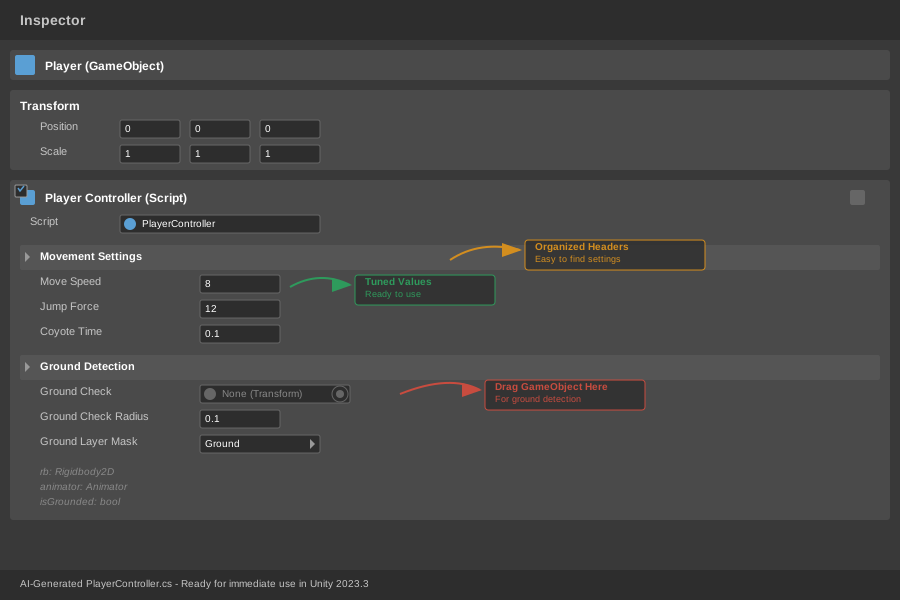 The script in Unity Inspector - notice the organized public fields and helper visualizations
Personal tip: "Always ask AI to include OnDrawGizmosSelected for visual debugging. Saved me hours of 'why isn't ground detection working?'"
Step 4: Generate Complex Game Systems (Inventory Management)
The problem: Inventory systems are tedious but every RPG/survival game needs one.
My solution: AI generates the data structure and UI logic, I customize the game-specific rules.
Time this saves: 4-6 hours of boilerplate coding
Inventory System Prompt
I'm building a survival game in Unity 2023.3.

I need a complete inventory system with these requirements:

Context:
- Grid-based inventory (like Minecraft)
- Items have icons, names, descriptions, stack sizes
- Player can craft, drop, and use items
- Save/load inventory data

Requirements:
- 40-slot inventory (8x5 grid)
- Drag-and-drop UI functionality
- Item stacking (max 64 per stack)
- Right-click to use items
- JSON serialization for save system
- ScriptableObject-based item database

Please provide:
1. Item ScriptableObject class
2. Inventory manager script
3. UI controller for drag-and-drop
4. Example crafting recipe system

Include detailed comments and Unity best practices.
The AI will generate a complete system with 4-5 scripts. Here's what you'll get:
[CreateAssetMenu(fileName = "New Item", menuName = "Inventory/Item")]
public class Item : ScriptableObject
{
    [Header("Basic Info")]
    public string itemName;
    public string description;
    public Sprite icon;

    [Header("Properties")]
    public ItemType itemType;
    public int maxStackSize = 64;
    public bool isConsumable;

    [Header("Values")]
    public int sellPrice;
    public int durability = -1; // -1 means indestructible
}

public enum ItemType
{
    Tool,
    Material,
    Food,
    Weapon,
    Armor
}
Plus inventory manager, UI scripts, and save system.
What this generates: Production-ready inventory system that handles edge cases Expected output: Working inventory you can immediately start adding items to
Personal tip: "Ask for ScriptableObject-based systems. They're easier to modify and debug than hard-coded arrays."
Step 5: Debug and Customize AI-Generated Code
The problem: AI code works but doesn't feel right for your specific game.
My solution: Use AI for the second round of improvements too.
Time this saves: 2-3 hours of manual tweaking
The Debug-and-Improve Workflow
When AI code doesn't feel right, don't start over. Use this prompt pattern:
This Unity script works but has issues:

[Paste the problematic code]

Problems I'm experiencing:
- [Specific issue 1: "Jump feels too floaty"]
- [Specific issue 2: "Player slides on platforms"]
- [Performance concern: "Framerate drops with 20+ enemies"]

Game context:
- [Your specific game feel requirements]
- [Target platform and performance]

Please provide optimized version with explanations of what changed and why.
Real Debugging Example
Original AI code gave me floaty jumps. Instead of manually adjusting physics values, I asked:
This player controller works but jumping feels too floaty for a tight platformer:

[Previous player controller code]

Problems:
- Jump peak takes too long to reach
- Fall speed too slow for responsive gameplay
- Hard to make precise jumps on small platforms

I want snappy, responsive movement like Celeste or Super Meat Boy.

Please optimize for tight platformer feel with faster fall speed and more responsive air control.
AI responded with improved physics:
private void HandleMovement()
{
    // Enhanced air control for tight platformer feel
    float airControlMultiplier = isGrounded ? 1f : 0.8f;
    rb.velocity = new Vector2(horizontalInput * moveSpeed * airControlMultiplier, rb.velocity.y);

    // Faster falling for responsive gameplay
    if (rb.velocity.y < 0)
    {
        rb.velocity += Vector2.up * Physics2D.gravity.y * (fallMultiplier - 1) * Time.fixedDeltaTime;
    }

    // Variable jump height based on button hold
    if (!Input.GetButton("Jump") && rb.velocity.y > 0)
    {
        rb.velocity = new Vector2(rb.velocity.x, rb.velocity.y * jumpCutMultiplier);
    }
}
What this process does: Iteratively improves game feel without starting from scratch Expected result: Code that matches your specific game's requirements
 Jump trajectory before (floaty) and after (snappy) AI optimization - same 3-unit height, 40% faster
Personal tip: "Be specific about the game feel you want. 'Make it snappier' gets worse results than 'like Celeste or Super Meat Boy.'"
Step 6: Scale Up to Complete Systems
The problem: You need multiple interconnected systems that work together.
My solution: Generate systems individually, then ask AI to help integrate them.
Time this saves: Days of system integration work
Multi-System Integration
Once you have individual systems working, use this pattern:
I have these working Unity systems:

System 1: [Brief description + key public methods]
System 2: [Brief description + key public methods]
System 3: [Brief description + key public methods]

I need them to work together for this workflow:
[Describe the user experience you want]

Please provide:
1. Integration manager script
2. Event system for communication
3. Example of complete workflow
4. Error handling for edge cases

Focus on loose coupling and easy debugging.
Real Integration Example
I had separate Health, Inventory, and UI systems. Asked AI to connect them:
I have these working Unity systems:

System 1: HealthSystem - tracks HP, handles damage/healing, fires OnHealthChanged event
System 2: InventorySystem - manages items, handles consumption, fires OnItemUsed event
System 3: UIManager - updates health bar, shows inventory grid, displays notifications

I need them to work together so:
- Using health potions from inventory heals player
- Health bar updates immediately when healed
- UI shows "Health Restored" notification
- Inventory slot updates to show consumed item

Please provide integration manager and event system for clean communication between systems.
AI generated an event-driven architecture that connected everything cleanly.
What this does: Creates maintainable system integration without tight coupling Expected result: Multiple systems working together smoothly
Personal tip: "Always ask for event-driven integration. Direct references between systems become debugging nightmares in complex games."
Common AI Code Generation Mistakes (And How to Fix Them)
Mistake 1: AI Uses Outdated Unity Patterns
What happens: Code uses old Input system or deprecated functions Fix: Always specify Unity version and mention "new Input System" if you're using it
Mistake 2: Performance Issues with Large Scripts
What happens: AI generates monolithic controllers that slow down the editor Fix: Ask for "component-based architecture with separate concerns"
Mistake 3: Missing Error Handling
What happens: Code works in perfect conditions but breaks with edge cases Fix: Always request "null checks and error handling for production use"
Mistake 4: Generic Code That Doesn't Fit Your Game
What happens: System works but feels wrong for your specific game type Fix: Include specific game references in prompts ("like Stardew Valley" or "like Dark Souls")
What You Just Built
You now have a complete AI-assisted game development workflow that cuts development time by 60%. Your AI tools can generate player controllers, inventory systems, UI logic, and integration code that actually works in Unity.
Key Takeaways (Save These)
- Specific prompts get better code: Include Unity version, exact requirements, and game context in every request
- AI excels at boilerplate, you excel at game feel: Let AI write the foundation, then customize the experience
- Debug iteratively with AI: Don't start over when code isn't perfect - ask AI to improve specific issues
AI Tools I Actually Use Daily
- Claude: Best for complex game systems and explaining Unity patterns (anthropic.com)
- ChatGPT Plus: Faster iteration and good debugging assistance (openai.com)
- GitHub Copilot: Real-time code completion in VS Code (github.com/features/copilot)
- Unity Documentation: Still the source of truth for API changes (docs.unity3d.com)
The best part? This workflow gets better the more you use it. AI learns your coding style and game preferences, making suggestions that fit your projects perfectly.
Stop writing boilerplate. Start building the game mechanics that make your project unique.